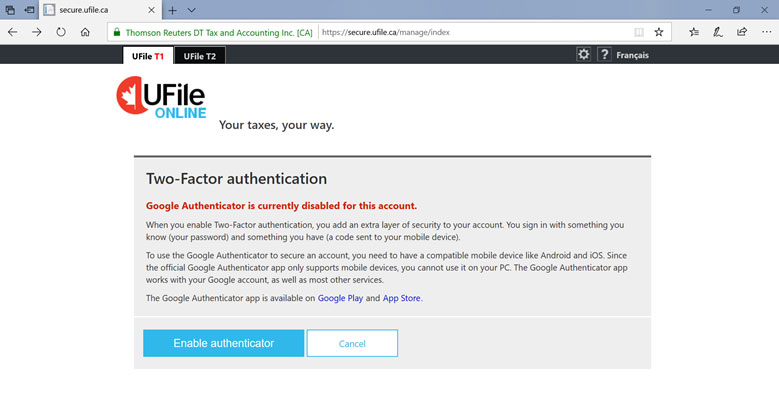
To use the Google Authenticator to secure an account, you need to have a compatible Android or iOS mobile device. The official Google Authenticator app only supports mobile devices; you cannot use it on your PC. The Google Authenticator app works with your Google account, as well as most other services.
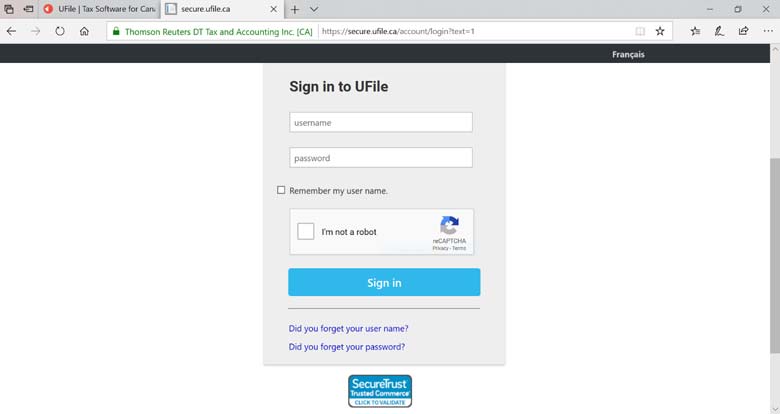
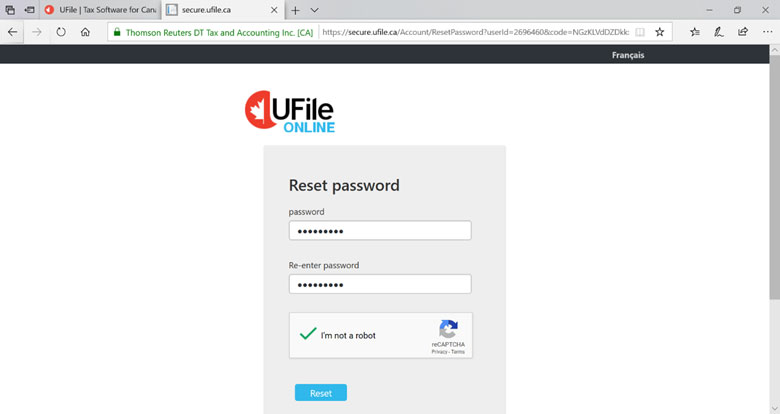
2. Enter your username and password
3. Click “Sign in”
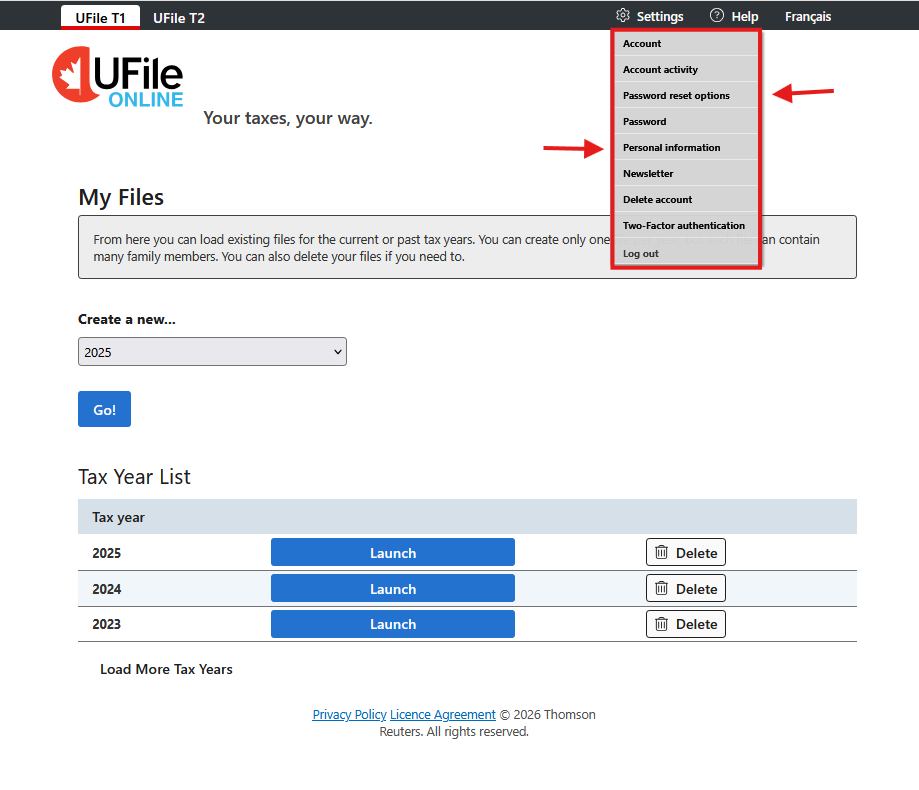
4. On the tax years page, click the “Settings” menu (the wheel located in the upper right-hand corner of the page)
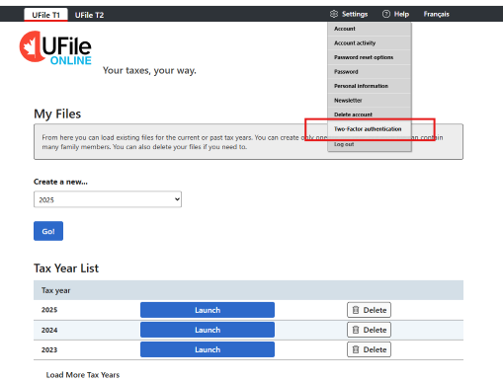
5. From the “Settings” menu choose option “Two-Factor authentication”
6. On the new page, click “Enable authenticator”
Scan the QR code on the computer screen with your mobile device e.g. with the camera app or a QR app.
You will also receive a recovery key displayed on the screen.
VERY IMPORTANT! The key will only be displayed once. If you no longer have access to your Two-Factor authentication application, you can use the recovery key to disable the option “Two-Factor authentication.”
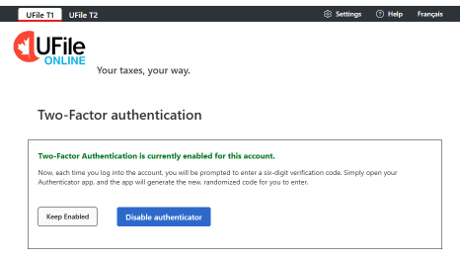
IF enabled it will display as:
To download the Google Authenticator app:
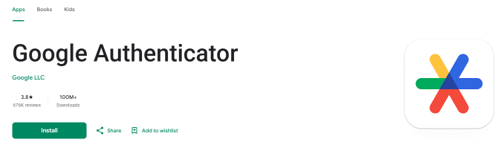
For Android:
Open the Google Play Store app on your Android device.
Search for "Google Authenticator."
Select the app published by Google LLC.
Tap Install.
https://play.google.com/store/apps/details?id=com.google.android.apps.authenticator2&hl=en
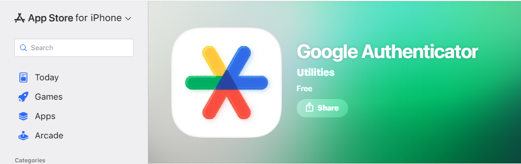
For Apple (iPhone/iPad):
Open the App Store on your iOS device.
Search for "Google Authenticator."
Select the app published by Google LLC.
Tap Get (or the cloud/download icon) and authenticate the download with Face ID, Touch ID, or your Apple ID password if prompted.
https://apps.apple.com/ca/app/google-authenticator/id388497605
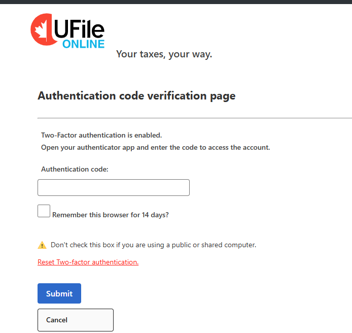
To login when enabled:
 SIGN IN